Final Cut Pro is a capable editing tool, but blurring faces is a manual, time-consuming process: you apply a blur effect, draw a shape mask, and keyframe it to follow the face through every movement. For a single short clip that works. For anything longer or with multiple people, it becomes a reliability problem.
Here is the complete picture: how to do it manually in FCP, where the manual approach breaks down, and how automated detection closes those gaps.
TL;DR
- FCP has no built-in face-tracking blur: you draw a shape mask, add a Gaussian blur effect, and keyframe the mask manually.
- Manual tracking works for one or two faces in a clip under a minute; beyond that, gaps appear and faces are exposed in individual frames.
- For production-grade anonymization, AI detection plus deterministic blur (no keyframing, no missed frames) is faster and more reliable.
- You can blur faces in video automatically without an account: upload, confirm detections, download.
The manual approach in Final Cut Pro
FCP does not ship with a face-detection feature. To censor a face you combine a shape mask with a blur effect and animate the mask to follow the face.
Step 1: Add a connected clip above the primary story
Create a new compound clip from the segment where the face appears, or work directly on the clip. You need a layer you can apply effects to without touching the original footage.
Step 2: Apply the Gaussian Blur or Pixelate effect
In the Effects Browser (Command-5), search for Gaussian or Pixelate. Drag the effect onto the connected clip. Set the amount high enough to destroy detail. A weak blur at a low radius can sometimes be partially recovered if the original footage is high resolution.
Step 3: Add a shape mask to the effect
In the Video Inspector, reveal the effect and click Add Shape Mask. A circle or rectangle appears over the viewer. Resize and position it over the face in the current frame. Increase the feathering slightly so the edge blends rather than cutting hard.
Step 4: Keyframe the mask across every frame
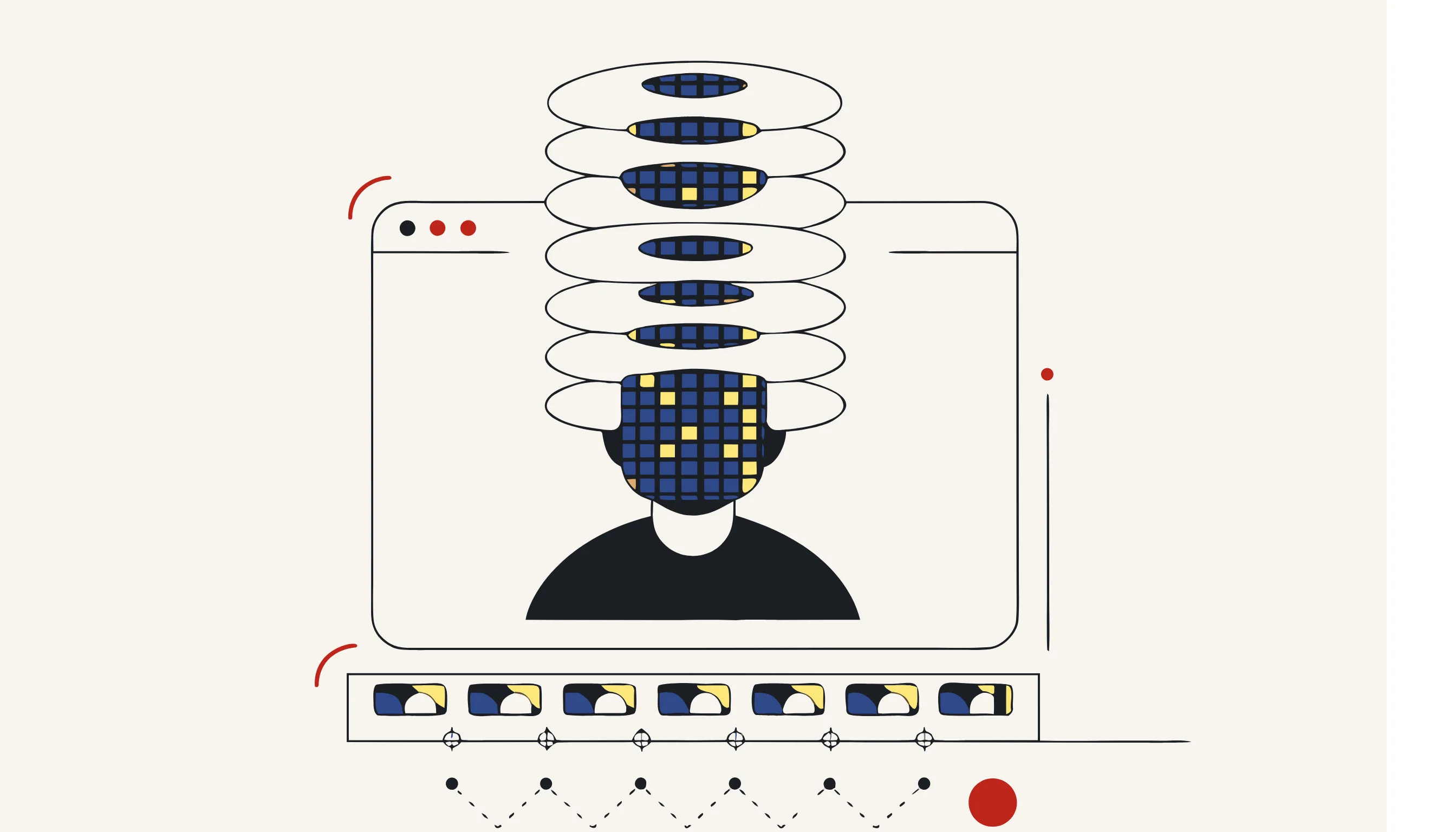
This is where manual FCP work gets painful. Activate keyframe recording (the diamond icon in the inspector), move the playhead one frame forward, reposition the mask to follow the face, and repeat, for every frame where the face is visible.
FCP's Transform and Stabilize tools do not help here; they operate on the whole clip, not on a sub-region. If the person turns their head, tilts, or moves quickly, you must manually compensate each keyframe. Motion (Apple's companion app) offers basic tracking with a Behavior > Match Move workflow that can speed this up, but it still requires manual cleanup wherever tracking slips.
Step 5: Export a flattened master
Once you are satisfied, export via File > Share > Master File. Choose a codec that re-encodes rather than passing through the original data. This bakes the blur into the output pixels. If the export is ProRes or H.264 with no layer information, the original face data is gone from the output file.
| Approach | Tracking | Time per face | Leak risk |
|---|---|---|---|
| FCP shape mask + manual keyframes | None (100% manual) | High | High if a keyframe slips |
| FCP + Motion Behavior tracking | Semi-automatic | Medium | Medium (tracking drift) |
| Automated detection + deterministic blur | AI per-frame | Seconds | Low (every frame covered) |
Where the manual approach fails
Manual keyframing has three reliability failure modes:
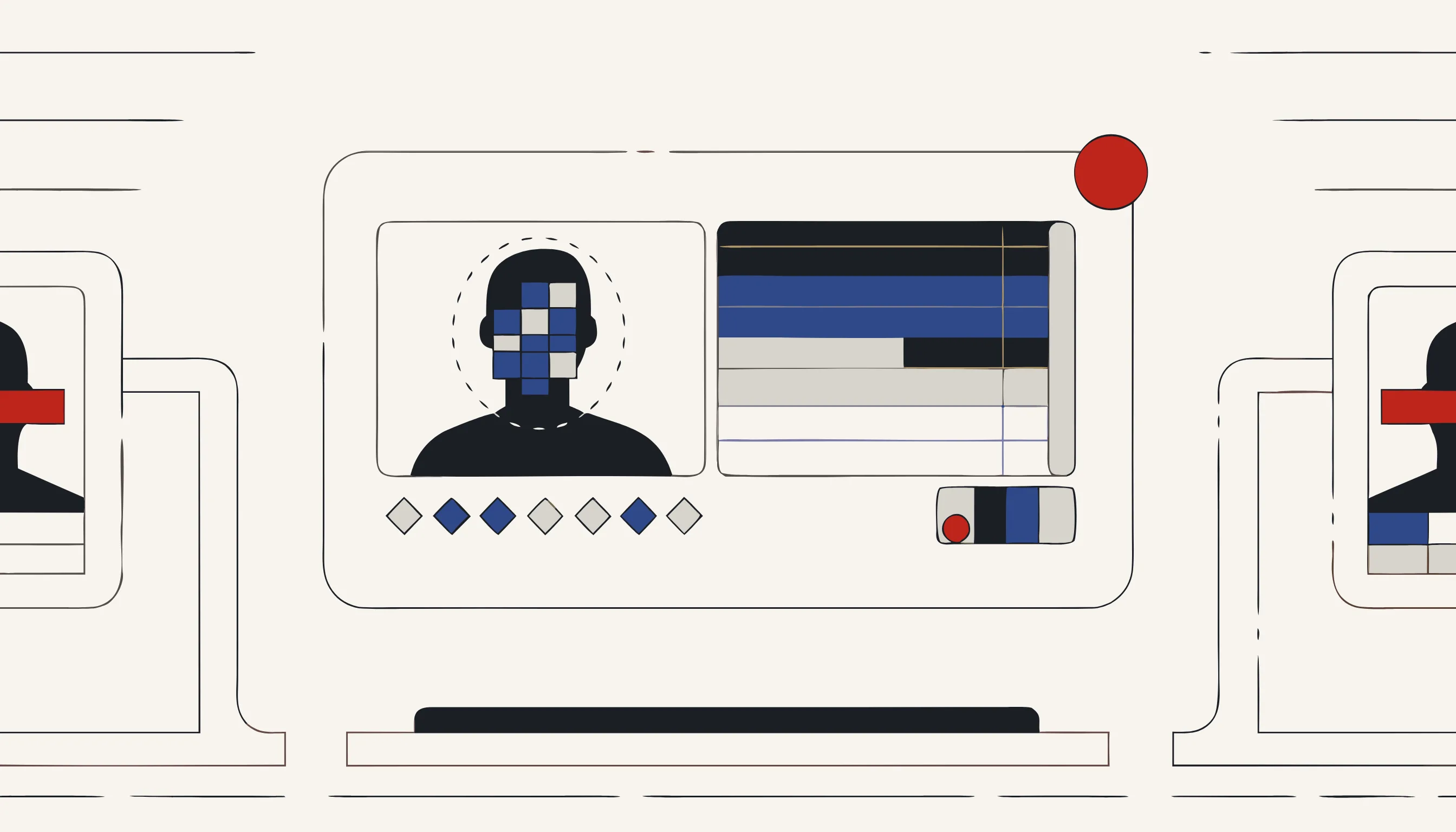
Frame-level gaps. If you advance by more than one frame at a time, or if the face moves faster than your keyframe density, there are frames where the mask is between positions and the face is partially or fully visible. At 24–30 fps, three exposed frames is about a tenth of a second: invisible during playback review, extractable by exporting a still.
Multiple faces. Each additional face requires its own independent mask-and-keyframe pass. In crowd footage or interview panels, the effort scales linearly with the number of people while the error rate compounds.
Long clips. A one-hour deposition or surveillance recording has up to 108,000 frames at 30 fps. No one keyframes 108,000 frames reliably. Realistically, reviewers step through in larger intervals and miss individual frames.
For a short documentary interview with one visible speaker, FCP is a reasonable choice. For anything that needs to be provably gap-free across every frame, you need detection-driven automation.
Automating face blur with Medianonymizer
The core problem with manual FCP work is that it relies on human attention to cover every frame. AI-powered detection runs frame-by-frame without fatigue and catches faces even during head turns, partial occlusions, and motion blur: situations where a shape mask drawn for a prior keyframe no longer covers the face.
Medianonymizer's approach to video anonymization pairs two distinct steps:
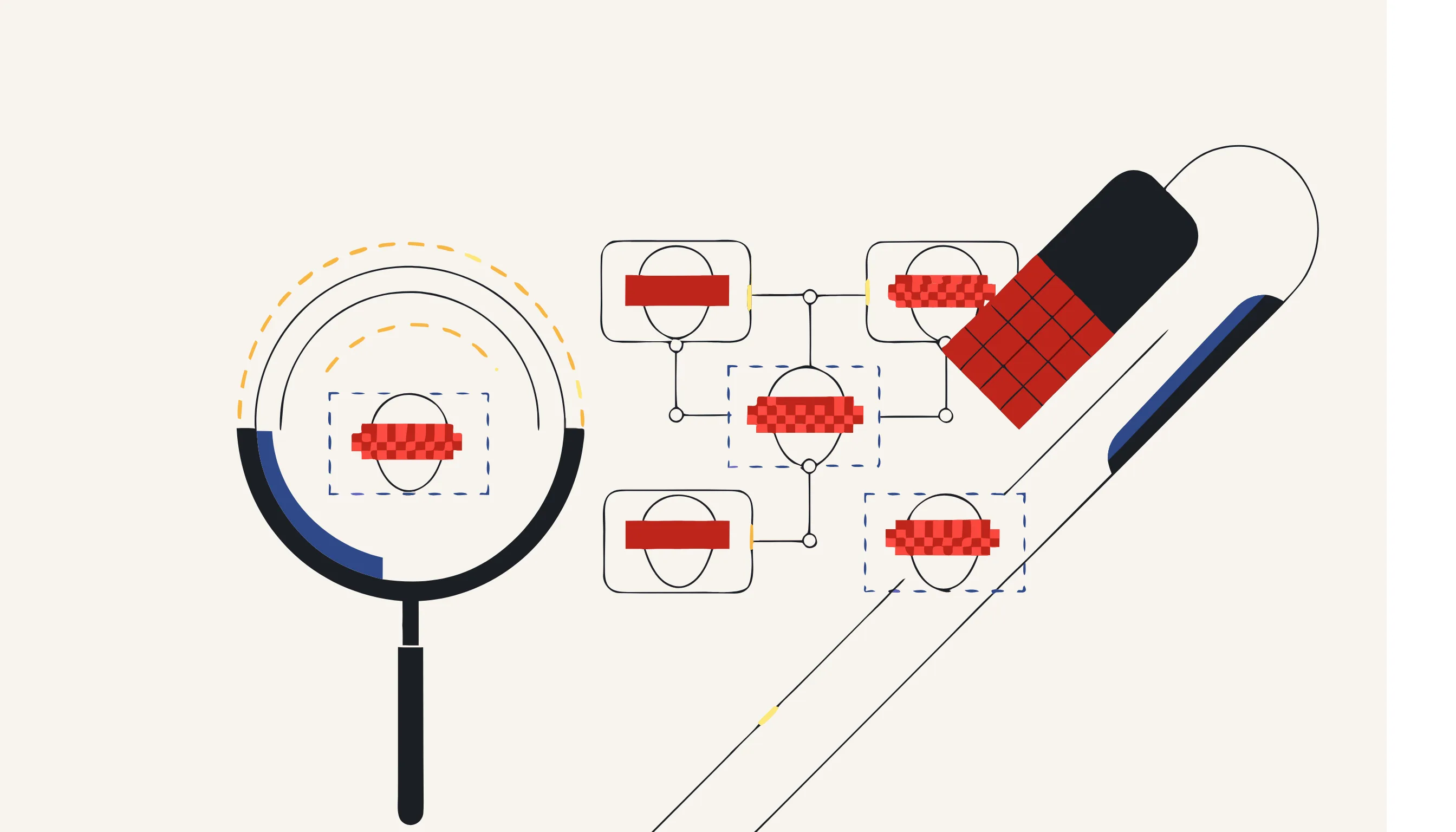
- AI locates: face detection runs on every frame, returning bounding boxes with confidence scores. A geometric tracker interpolates positions across frames where the detector loses confidence, keeping the blur locked on even through brief detection gaps.
- Deterministic code removes: the pixel regions are re-encoded with a Gaussian blur or pixelation at a kernel strong enough to destroy identifying detail. This is not an overlay; the original pixels are replaced in the output file.
The audio track is handled in the same pass: speech-to-text with word-level timestamps identifies spoken PII (names, numbers, identifiers), and those ranges are replaced with a beep or silence in the waveform. A video that has all faces blurred but leaves the audio untouched is an incomplete anonymization.
Common use cases where FCP manual blur is not enough
- Depositions and legal recordings: multiple speakers, hours of footage, zero tolerance for exposed frames.
- CCTV and bodycam footage: faces appear unpredictably; no prior knowledge of how many people will appear.
- Research and training video: participant data must be removed under consent agreements or ethics board requirements.
- Journalism and documentary: sources need consistent protection through the entire clip, not spot-checked keyframes.
- Compliance disclosure: footage shared under GDPR, HIPAA, or FOIA requests where every frame must be demonstrably covered.
A practical checklist before sharing any blurred video
- Every face is covered in every frame, including mid-motion and partial occlusion frames.
- The blur is strong enough to destroy detail, not a weak smear over a high-resolution face.
- The export is a re-encoded flat file with no separate layers that can be peeled back.
- The audio track has spoken PII beeped or silenced, not just the video.
- Container metadata (GPS tags, device IDs, creation timestamps) is stripped from the output file.
- A spot-check confirmed no exposed frames by stepping through the hardest moments frame by frame.
Blur faces in your video now
If your clip is short and has one or two faces, the FCP workflow above will get the job done. If you need coverage you can trust across every frame (without keyframing a mask through every movement), upload the file and let automated detection handle it.
Frequently asked questions
No. FCP has no dedicated face-detection blur. You apply a Gaussian blur or pixelate effect to a connected clip or shape mask, then manually track it frame by frame. For anything beyond a single static face, you typically need Motion or a third-party plugin.