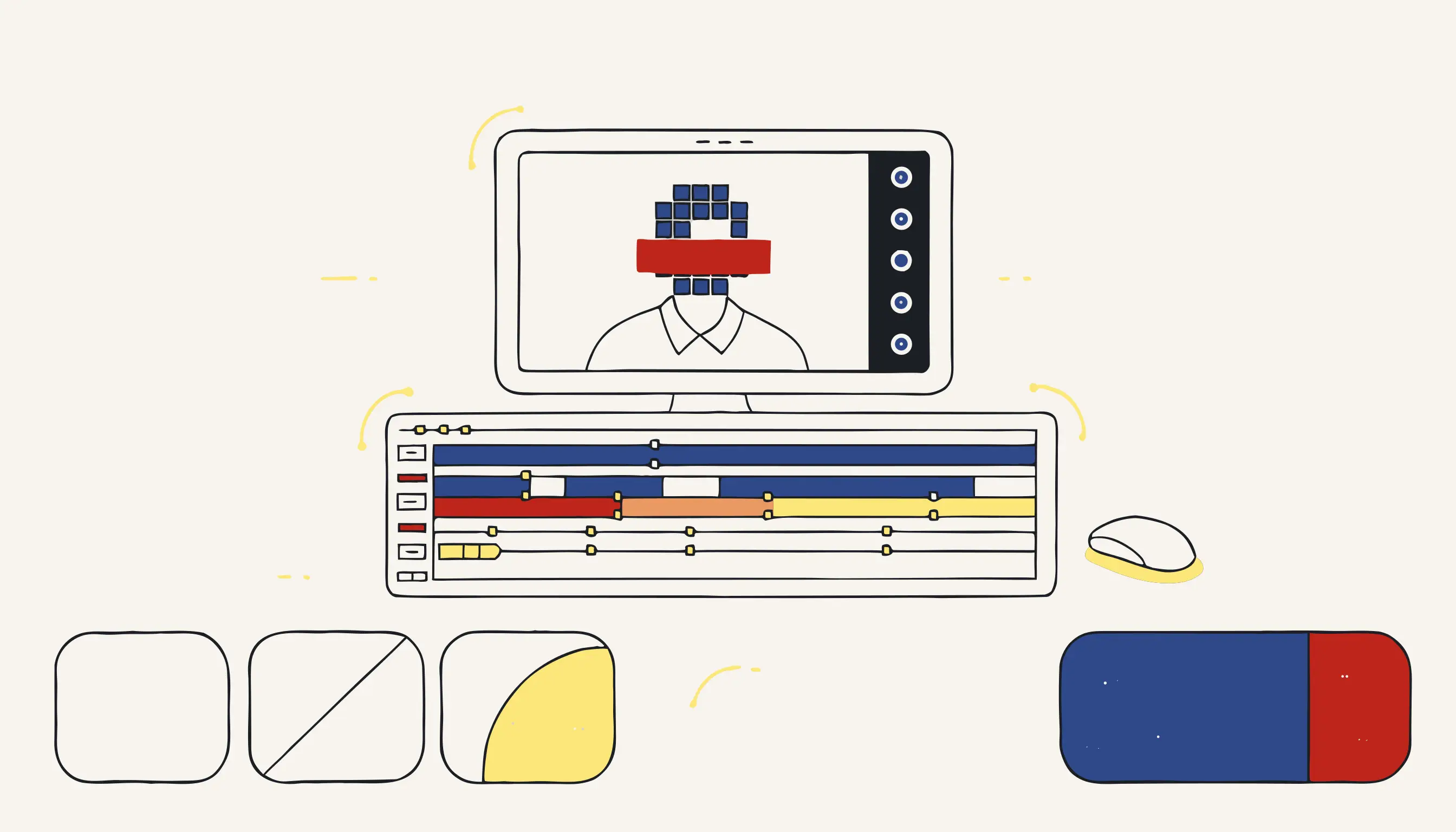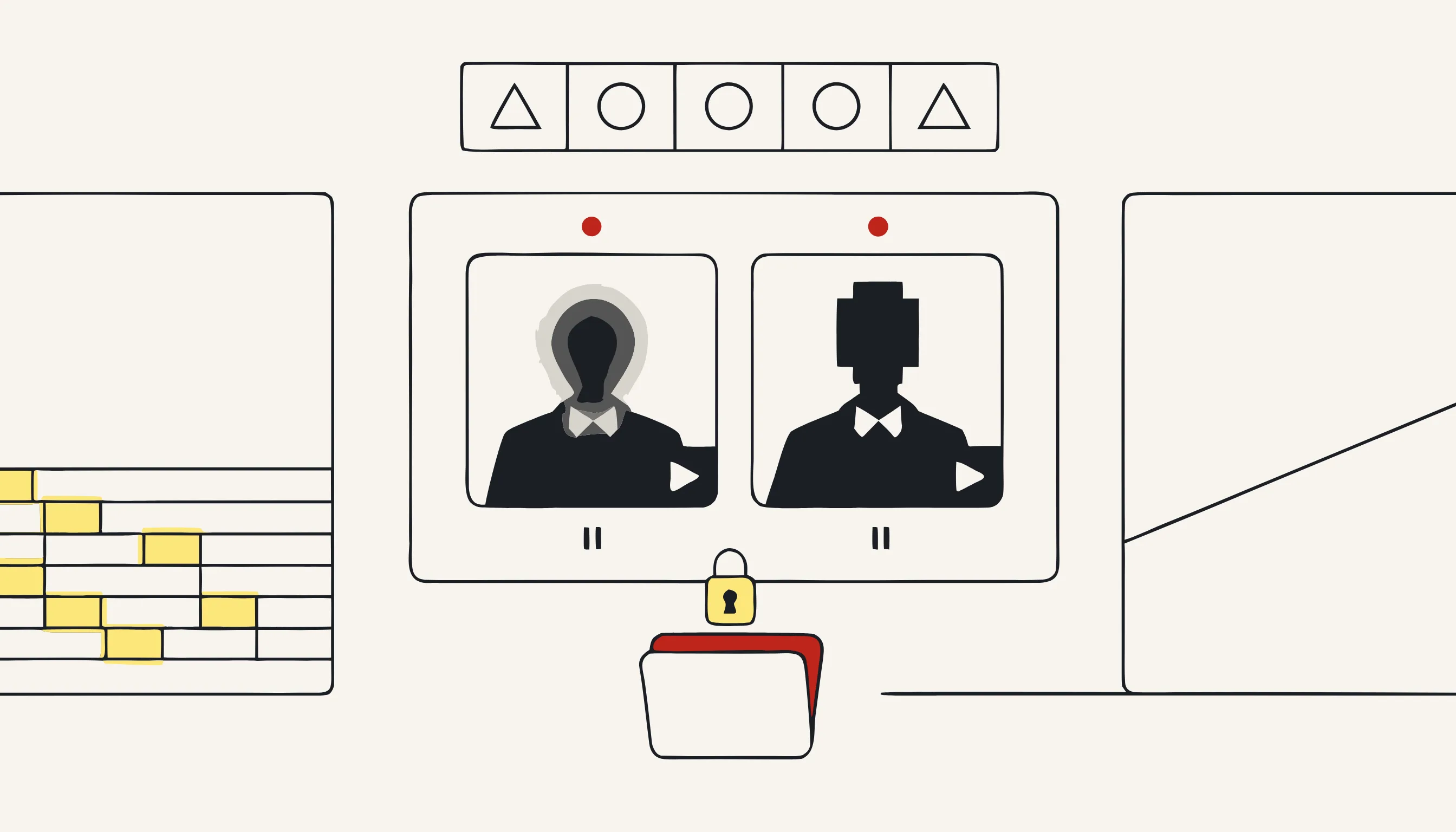
Blurring a face in Adobe Premiere Pro takes about five clicks on a still image. On a moving subject across a five-minute interview, it can consume an entire afternoon. This guide covers both: the correct manual technique in Premiere Pro and the point at which automation is the smarter choice.
TL;DR
- Apply Gaussian Blur or Mosaic to a mask over the face in Premiere Pro Effect Controls.
- Use the built-in mask tracking to follow movement: expect to fix drift manually.
- For one or two faces in a short clip, Premiere Pro works fine.
- For bulk footage, multiple subjects, or legally compliant anonymization, use Medianonymizer's face blur tool instead.
- Premiere Pro blur is non-destructive and reversible. Medianonymizer's processing is permanent and auditable.
The Manual Method: Blurring a Face in Premiere Pro
Step 1: Add the blur effect
Open your sequence and select the clip containing the face you want to censor. In the Effects panel, search for either Gaussian Blur (smooth defocus) or Mosaic (pixelated tiles, the standard look for news and documentary censoring). Drag the effect onto the clip.
Step 2: Create a mask over the face
In Effect Controls, expand the Gaussian Blur or Mosaic section. Click the ellipse mask icon (the oval shape) to create an elliptical mask. Premiere Pro will draw an oval in the center of the frame. Drag and resize it in the Program Monitor to cover the face. Increase the Feather value (around 20–40 px) so the blur edge blends naturally.
Increase the Blurriness value (Gaussian) or the Horizontal/Vertical Blocks count (Mosaic) until the face is unrecognizable. A blurriness of 60–100 or a block size of 20–30 is usually sufficient for broadcast-standard censoring.
Step 3: Enable mask tracking
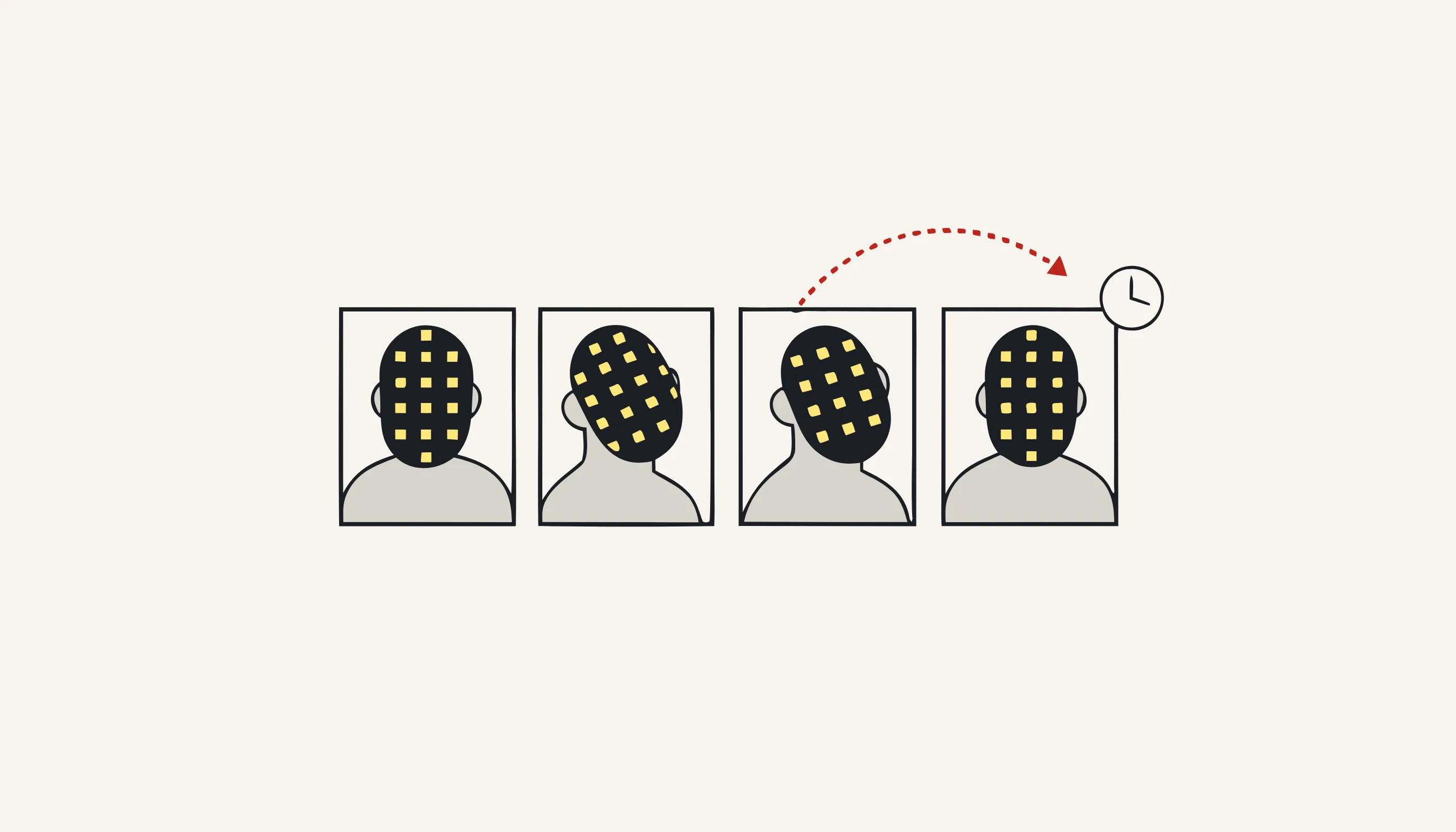
The mask stays in place as the clip plays; it does not follow the face automatically. To track movement, go to the mask controls in Effect Controls and click the forward play button next to "Mask Path". Premiere Pro will analyze the frames and attempt to follow the masked region.
Mask tracking works well for subjects who face the camera directly and move slowly. It will drift or fail when:
- The subject turns their head more than roughly 45 degrees.
- Another person or object passes in front of the face.
- The camera cuts or zooms.
- Lighting changes sharply between frames.
Step 4: Fix tracking errors frame by frame
Scrub through the clip after tracking completes. Where the mask has drifted off the face, move the playhead to that frame, reposition the mask manually, and re-run tracking from that point forward. On a long interview this cycle of track → fix → re-track is the main time cost.
Limitations to know upfront
| Situation | Premiere Pro manual blur | Automated tool |
|---|---|---|
| Single face, short clip (<2 min) | Fast, practical | Overkill |
| Multiple faces in the same frame | One mask per face; slow | Handles all simultaneously |
| Long footage (>10 min) | Very time-consuming | Scales linearly |
| Moving/turning subjects | Tracking drift is common | AI re-detects per frame |
| Legal compliance (GDPR, HIPAA) | Blur is reversible (not compliant on its own) | Irreversible, auditable output |
| Batch processing (many clips) | Not feasible manually | Fully automated |
A key point worth stating plainly: Premiere Pro's effects are non-destructive. The source media is untouched. Anyone with the original file and the project file can delete the blur effect and see the uncensored face. If you need genuine privacy protection (for research data, legal submissions, journalism, or GDPR compliance), a reversible editor effect is not sufficient.
When to Use Medianonymizer Instead
Medianonymizer uses an AI detection layer to locate faces (and optionally license plates and spoken PII) across every frame of your video, then runs a deterministic, ffmpeg-based pipeline that permanently overwrites the detected regions in the exported file. The blur is baked into the pixels. There is no project file with a removable effect layer.
This approach is the right choice when:
- You have more than one or two faces to blur across a clip.
- Your footage is longer than five minutes and manual tracking would be impractical.
- You need to process multiple video files without editing each one individually.
- The output must be provably anonymized: for a data protection officer, a legal team, or a research ethics board.
- You want to combine face blur, license plate blur, and audio PII beeping in a single pass.
Pricing is transparent: video anonymization is priced from 4.99 EUR per video file (plus 0.29 EUR per minute), with no subscription required. You can also anonymize images from 1.99 EUR per job if you only need still-frame processing.
Common Use Cases
- Documentary and journalism: Protect sources or bystanders before broadcast.
- Research and clinical video: Anonymize participant footage for ethics-compliant data sets.
- Legal and insurance: Submit video evidence with identities protected.
- CCTV and surveillance: Anonymize footage before sharing with third parties or regulators.
- Education and training: Use real footage in training materials without exposing individuals.

A Practical Checklist
- Identify all faces that need to be censored in your footage (including background bystanders).
- Decide whether reversible (editing project) or irreversible (exported pixel) anonymization is required.
- For 1–2 faces in a short clip: use Premiere Pro Mosaic + mask tracking and fix drift manually.
- For longer footage, multiple subjects, or batch processing: upload to Medianonymizer.
- Verify the output by scrubbing through the entire clip: do not rely on spot-checking.
- If compliance is required, confirm the output format meets your organization's documentation requirements.
Anonymize Your Video Now
If you have reached the tracking-drift-fix-retrack loop and decided manual editing is not the right tool for this job, upload your video file to Medianonymizer →. No account needed, no software to install: upload, select faces, download the permanently anonymized result.
For related reading on protecting sensitive audio in the same workflow, see how to anonymize audio recordings.
Frequently asked questions
Yes, but it requires manual work. You apply a Gaussian Blur or Mosaic effect to a mask, then use the mask-tracking feature (the play button inside the Effect Controls mask panel). It works reasonably well for slow, frontal movement, but drifts on fast turns or occlusions, you will need to go frame-by-frame to fix tracking errors.