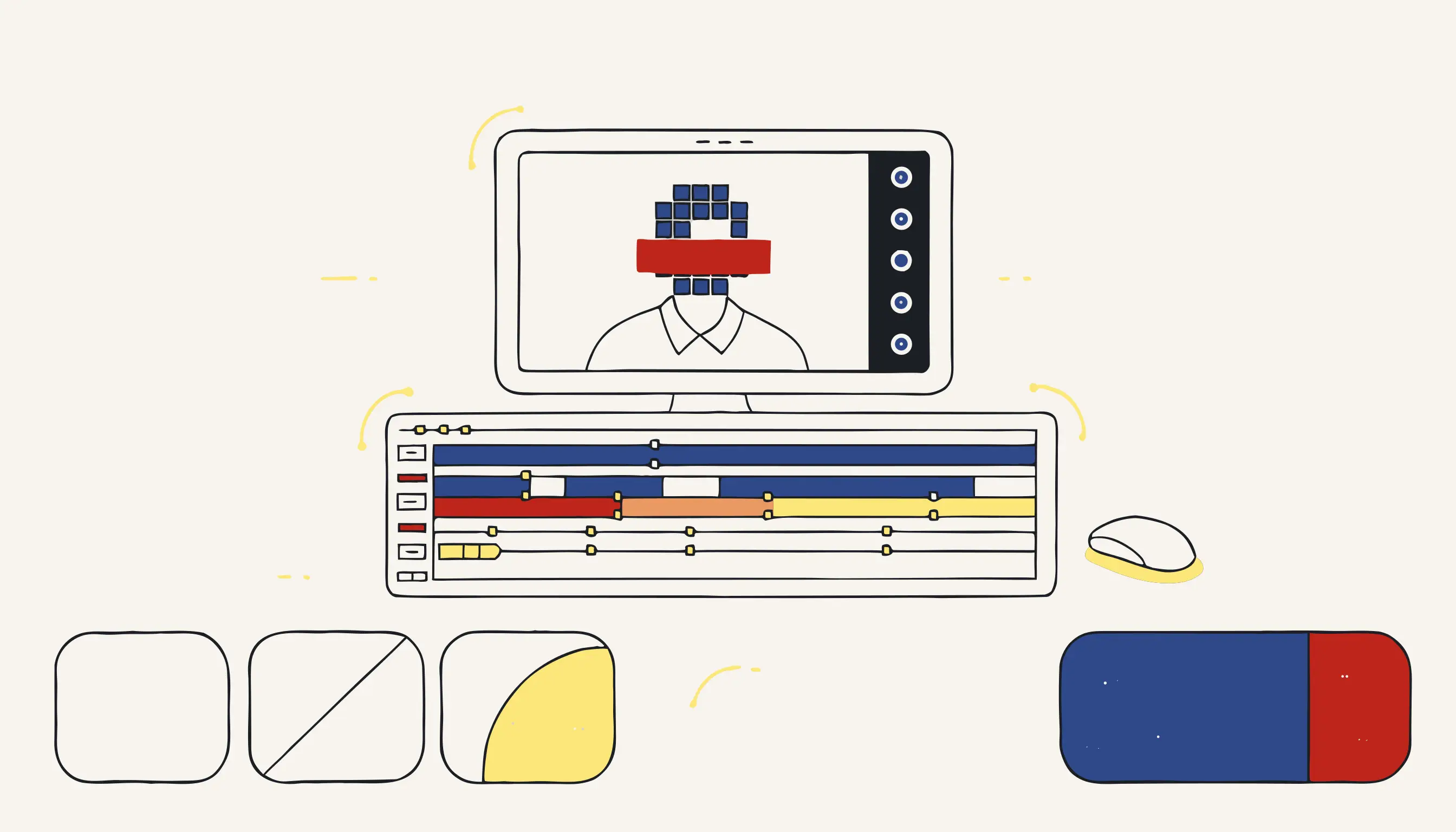
iMovie is a capable editor for personal and creative projects, but blurring faces, especially moving ones, is one of its more painful workflows. It is possible, it works for short clips with a few static subjects, and the steps below will get you there. But once you understand the manual work involved, you may also want to know when a smarter tool saves you hours.
TL;DR
- iMovie has no native face-blur tool: you fake it with the Picture-in-Picture effect and a blurred copy of your clip, or a third-party plugin.
- Moving faces require manual keyframes for every position change (tedious, and easy to miss exposed frames).
- For more than two faces, long clips, or footage that needs to be legally defensible, an automated pipeline with AI detection and deterministic pixel destruction is faster and more reliable.
- You can blur faces automatically in minutes: no software to install.
The honest reality of blurring faces in iMovie
iMovie was built for storytelling, not redaction. It has no dedicated face-blur, no object tracking, and no way to apply an effect that follows a subject automatically. What it does have is enough to do the job manually. But "manually" is the key word.
The two workable approaches are:
- Picture-in-Picture (PiP) trick: duplicate the clip, apply a heavy blur to the copy, stack it over the original, and crop the blurred copy down to cover only the face region. Reposition with keyframes whenever the face moves.
- Third-party filter: some plugins (like FxFactory titles) add a movable blur region directly in the viewer, which is slightly less cumbersome but still requires manual keyframes.
Neither approach tracks faces. You are the tracker.
Step-by-step: blurring a face in iMovie using the PiP method
Step 1: Duplicate your clip in the timeline
In iMovie's timeline, hold Option and drag your clip onto itself to create a duplicate directly above it. You now have two copies: the base clip and an overlay clip.
Step 2: Apply a Gaussian blur to the overlay clip
Click the overlay clip, open Video Overlay Settings (the button that looks like two overlapping squares), and choose Picture in Picture. Then open the Clip Filter panel (the magic wand icon) and select a blur filter. iMovie's built-in filters are limited; a heavy "Blur" or "Gaussian" filter from the list works: crank the intensity until the face is unrecognizable.
Step 3: Crop and position the blurred overlay
In the viewer, drag the PiP box to sit over the face. Resize it so it covers only the face region you want to hide: covering less is a leak, covering more is fine.
Step 4: Add keyframes for movement
Here is where the time cost grows. Click the frame where the face starts moving, lock the position with a keyframe (right-click the overlay in the viewer → Add Keyframe). Scrub to the next position, add another keyframe, reposition the box. Repeat every few frames for the entire duration the face is on screen. For a 30-second shot of someone walking, this means dozens of keyframes.
Step 5: Export
Go to File → Share → File, choose a resolution, and export. The blur is baked into the exported MP4 or MOV; the original project file still holds the source pixels, but the exported file has the face region destroyed at that resolution.
Why this breaks down at scale
| Scenario | iMovie | Automated tool |
|---|---|---|
| 1 face, static shot, < 30 s | Manageable | Overkill |
| 1 face, moving, 2 min clip | ~1 hour of keyframing | < 2 minutes |
| 3 faces, interview footage | Very tedious; high leak risk | Automatic |
| 10+ people in a crowd | Practically impossible | Handled by detection |
| Audio PII (names, numbers) | Not addressed at all | Included in the pipeline |
| Metadata stripping | Manual; iMovie preserves some | Automatic |
The honest trade-off: iMovie is free and already on your Mac. For a single short clip with one or two faces that barely move, the manual method is a reasonable one-time effort. For anything more complex, the time and error risk are significant.
What a complete anonymization actually requires
Blurring the visual is only part of the job. A video that is genuinely anonymized for sharing, compliance or publication also needs:
- Stable, frame-level coverage: the blur must follow the face with no exposed frames, including during head turns and partial occlusions.
- Audio redaction: spoken names, phone numbers and other identifiers in the audio track must be beeped or silenced. iMovie does not do this.
- Metadata removal: video containers carry GPS coordinates, recording timestamps and device identifiers. These must be stripped from the file.
- Irreversible pixel destruction: the blur must be re-encoded into the pixel data, not applied as a removable overlay layer.
iMovie covers point four partially (if you export), and point one only if your manual keyframing is exhaustive. Points two and three require extra steps outside iMovie.
Automate it instead: how Medianonymizer handles this
For footage where completeness matters (shared evidence, healthcare video, research data, any footage that touches GDPR or HIPAA), the workflow above is:
- AI detects every face in every frame, building tracked bounding boxes across the clip.
- A transcription model finds spoken names, numbers and identifiers with word-level timestamps.
- A deterministic pipeline (not a generative model) applies Gaussian blur or pixelation directly to the re-encoded pixels in every tracked frame, and beeps or silences every flagged audio segment.
- Container metadata is stripped.
- You download a single file where the redactions are irreversible.
This is the approach explained in detail in the blur faces in video use case.
Common use cases where the automated approach pays off
- Interviews and testimonials where subjects' identities must be protected before publication.
- Dashcam and bodycam footage submitted as evidence or released under FOIA with faces and plates redacted.
- Research or clinical video where participant consent does not extend to identifiable footage.
- Event or training footage shared internally, where incidental bystanders have not consented to appear.
- Compliance archives where a GDPR or HIPAA controller must demonstrate that personal data was removed, not just obscured.
A practical checklist before you share
- Every face is covered in every frame, including mid-motion and partial occlusions.
- The blur follows the face: no flickering or exposed frames during movement.
- The blur strength is sufficient to destroy recognizable detail (a weak mosaic over a high-resolution face can be partially recovered).
- The audio track has spoken names, numbers and addresses beeped or silenced.
- Container metadata (GPS, device IDs, recording timestamps) is stripped.
- You are sharing the exported file, not the original project source.
Blur faces in your video now
If you have a single short clip and a spare hour, the iMovie method above will work. If you have anything more complex, or if the footage is sensitive enough that missing a frame is not an option, upload it and let the pipeline handle detection, tracking, audio redaction and metadata stripping automatically.
Frequently asked questions
Not by design. iMovie applies blur as a rendered effect on export, but the original project file keeps all source pixels intact. If you share the exported MP4 the blur is baked in at that file's resolution, which is effectively irreversible, but only if you never share the original project or source clip. For a legally auditable, irreversible result on a single output file, a dedicated pipeline that re-encodes the pixels (rather than overlaying a filter) is safer.