After Effects is a capable tool for blurring faces in video, and for a short clip with one or two subjects it gets the job done. For longer footage, crowds, or footage where faces move rapidly, the manual tracking workflow becomes slow and error-prone. This guide walks through both paths: the honest AE method, and when it makes sense to hand the work to an automated tool.
TL;DR
- In After Effects: apply a Mosaic or Gaussian Blur effect to an adjustment layer, draw a mask over the face, then use the built-in tracker to follow the face across frames.
- The approach works but requires a separate mask, tracker, and keyframe review per face; it scales poorly beyond one or two subjects.
- For multiple faces, long footage, or audio redaction, an automated pipeline like Medianonymizer is faster and more reliable.
- Whatever tool you use, make sure the blur is baked into the exported pixels: an effect layer that can be toggled off is not anonymization.
The After Effects method: step by step
Step 1: Import your footage and create a composition
Drag your video clip into a new composition. Match the composition settings (frame rate, resolution) to the source footage so there is no quality loss.
Step 2: Add an adjustment layer with a blur effect
- Go to Layer → New → Adjustment Layer.
- Apply Effect → Stylize → Mosaic (or Effect → Blur & Sharpen → Gaussian Blur) to that layer.
- Set the Horizontal Blocks / Vertical Blocks (Mosaic) or Blurriness (Gaussian) high enough to make the face completely unrecognizable. A common mistake is using a weak value that merely obscures: low-frequency detail can still leak identity.
The adjustment layer will affect the entire frame at this point. You will restrict it with a mask in the next step.
Step 3: Draw a mask over the face
Select the adjustment layer and use the Ellipse tool (Q) to draw a mask around the face. Switch the mask mode to Add so only that region is blurred.
Set Mask Feather to 10–20 px so the blur edge blends naturally and does not create a hard visible box.
Step 4: Track the mask to follow the face
This is the critical step. Without tracking, the mask sits in place while the face moves and leaves the face uncovered.
- With the adjustment layer selected, open the Tracker panel (Window → Tracker).
- Click Track Mask.
- AE will analyze the clip and try to move the mask to follow the face. Review the result by scrubbing through the timeline.
When the tracker drifts (and on real footage it will, especially through head turns, low-contrast backgrounds, or fast movement), you must manually adjust the mask keyframes at each problem frame. Select the keyframe, reposition the mask, and let AE re-interpolate around the correction.
For a single face in a short, well-lit clip this is manageable. For each additional face, repeat Steps 2–4 from scratch with a new adjustment layer.
Step 5: Export a flattened render
Go to Composition → Add to Render Queue (or use Media Encoder). Export as H.264, ProRes, or any format where the composition is flattened. The blur must be baked into the pixels of the output file. Never hand off the .aep project file as the "anonymized" version; the effect layers are still editable.
Where the AE workflow breaks down
| Scenario | AE manual workflow | Automated pipeline |
|---|---|---|
| 1–2 faces, clip under 1 min | Manageable (30–60 min) | Overkill |
| 5+ faces in a single clip | One tracker per face; hours of work | Seconds |
| Fast motion or head turns | Tracker drifts; manual fixes required | Geometric tracking absorbs gaps |
| Batch of clips | Repeat full process per clip | Single upload |
| Audio PII (spoken names, numbers) | Not possible in AE | Handled in the same pass |
| Irreversibility audit | Depends on render workflow | Deterministic, re-encoded at output |
The fundamental limitation is that AE tracks by visual features (contrast edges), not by face identity. When the contrast information is ambiguous, the tracker guesses, and those guesses require human correction.
For GDPR compliance or legal disclosure, every exposed frame is a leak. A drift you did not catch during review is a problem.
Automated face blurring: how Medianonymizer works
For footage where AE tracking is too slow or too risky, blur faces in video with an automated pipeline built around a different principle: AI locates, deterministic code removes.
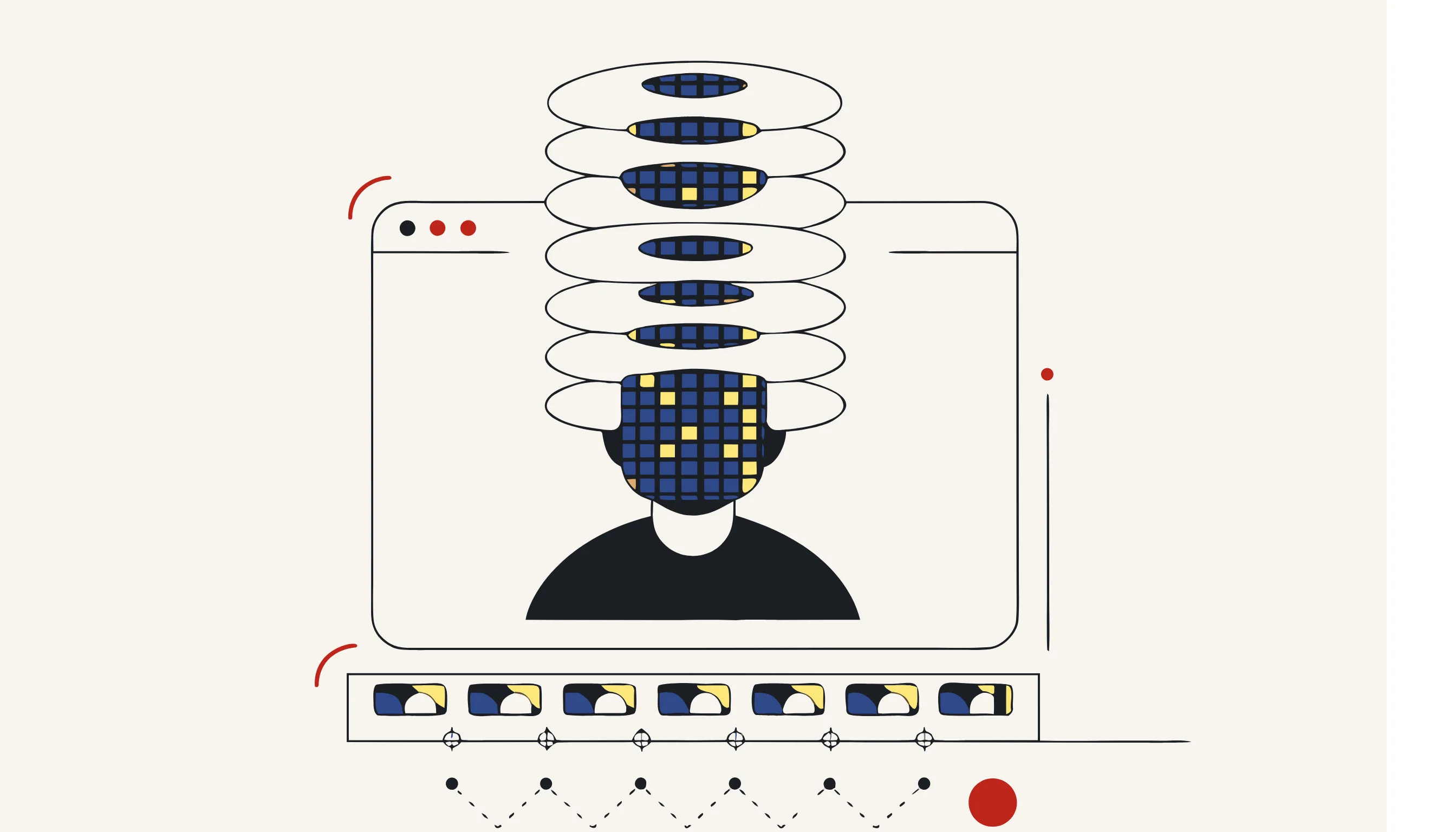
- A face detector runs on every frame and returns bounding boxes for each face.
- Geometric tracking (IoU association + motion prediction) links detections across frames, so the blur stays locked on a face even when the detector misses a frame due to motion blur or a head turn.
- A deterministic blur is applied to each bounding box region and re-encoded into the pixel data: no layer, no toggle, no project file.
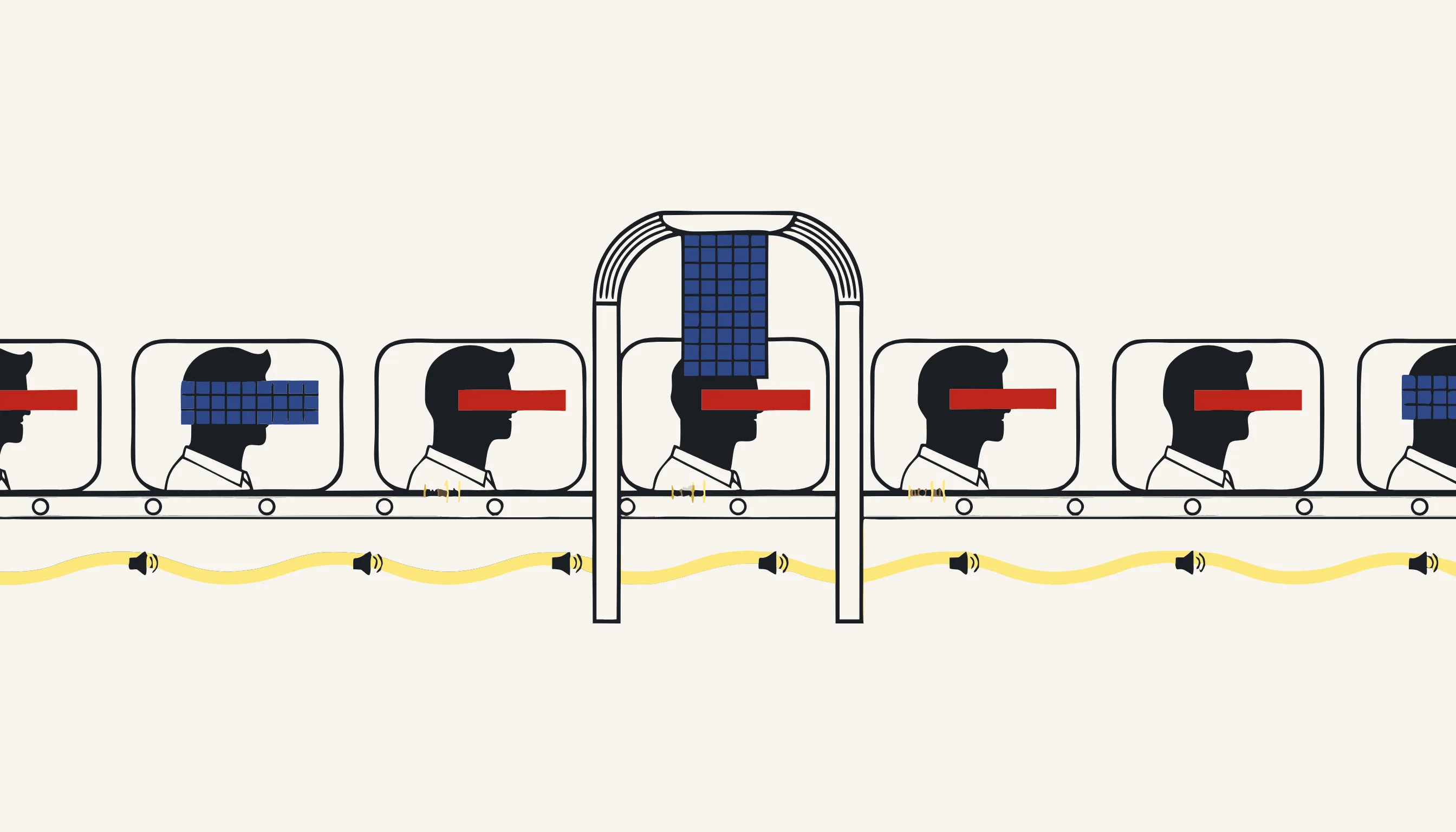
- The audio track is processed in the same pass: speech-to-text with word-level timestamps, NER + regex to locate spoken PII, then beep or silence applied to the waveform.
The result is an output file where the original face pixels no longer exist. Unlike an AE export where you could theoretically open the project and disable the effect, the pixels here are gone.
See how to anonymize video for a deeper look at the detection-plus-tracking approach and why it avoids the flicker problem that plagues per-frame-only methods.
A practical checklist before you call it done
Whether you used After Effects or an automated tool, verify:
- Every face is blurred in every frame, including head turns and partial occlusion.
- The blur strength is high enough to destroy recognizable detail (not just obscure it).
- The blur is baked into the exported pixels, not sitting on a removable layer.
- If the footage has spoken content, audio PII is also beeped or silenced.
- Container metadata (GPS tags, device identifiers, creation timestamps) is stripped from the file.
Blur faces in your video now
If you have more than a couple of faces to blur, or footage longer than a minute, skip the manual tracker and let the pipeline handle it.
Upload your clip, confirm the detections, and download an anonymized file where every face is tracked and covered across every frame, irreversibly.
Frequently asked questions
The built-in tracker handles steady motion reasonably well, but it relies on contrast features that can drift when a face turns, goes into shadow, or is temporarily occluded. When the tracker drifts you have to manually correct the keyframes. For footage with multiple people or fast movement, AE tracking is error-prone and time-consuming.