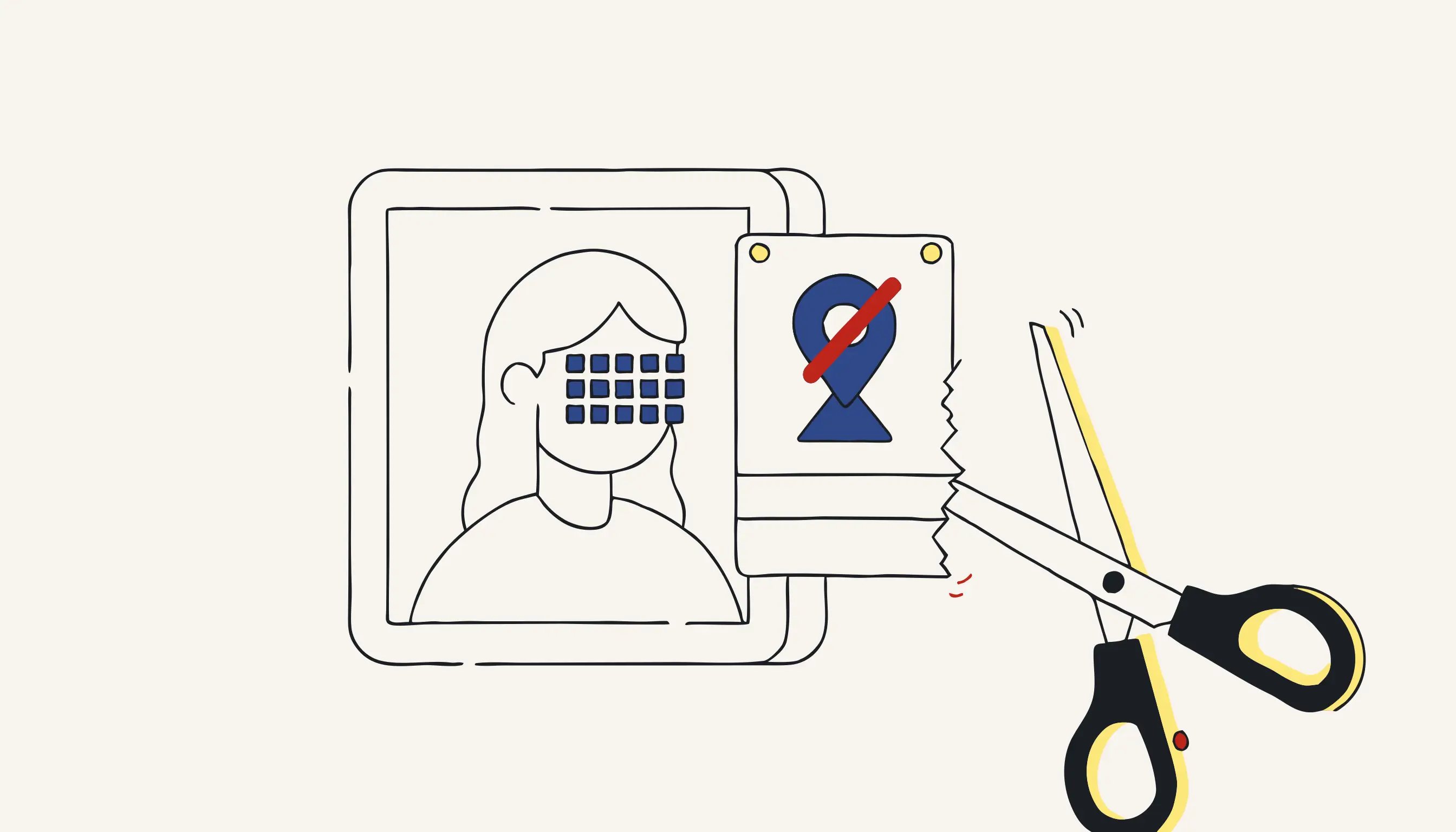
A single photo can expose more than you think. A team snapshot posted to a careers page reveals faces. A delivery proof shows a license plate and a house number. A scanned form leaks names and account numbers in plain sight. And underneath all of it, invisible to the eye, the file's metadata can record exactly where and when the picture was taken, sometimes down to GPS coordinates.
This guide explains how to anonymize images properly for a business or compliance context: how to redact faces, license plates and visible PII so they cannot be recovered, why metadata is the silent leak most teams overlook, and how to choose between a solid box and pixelation. The goal throughout is the same: results that are irreversible, auditable and GDPR-aligned.
TL;DR
- Anonymizing an image means two things at once: destroying the sensitive pixels (faces, plates, visible text) and stripping the file's metadata (EXIF, GPS, embedded thumbnails).
- The reliable pattern is two steps: locate sensitive regions with AI detection, then redact them deterministically (a solid box or strong pixelation drawn onto the pixels).
- Metadata is the silent leak. A perfectly redacted photo with intact EXIF can still reveal the location, time and device. Always strip it.
- You can anonymize an image right now: upload, choose what to redact, and download a clean copy with metadata removed.
What "anonymizing an image" actually means
Anonymization is not the same as cropping a photo or slapping a semi-transparent rectangle over a face. For images, anonymization means finding every piece of personal data, visible and hidden, and destroying it so that it cannot be recovered.
There are two distinct jobs hiding inside that sentence:
- Locating the sensitive information: faces, license plates, signatures, screen text, ID numbers, and the metadata fields buried in the file header.
- Removing it: drawing an opaque box or strong pixelation over the pixels, and rewriting the file without its identifying metadata.
Confusing these two steps is the most common mistake. The "locating" part benefits hugely from AI (face detection, OCR, object detection). The "removing" part should never be left to a model; it must be deterministic code that operates on precise pixel coordinates and metadata fields, because that is what makes the result reproducible and trustworthy.
Step 1: Locate sensitive regions and hidden data
You can't redact what you can't find. Locating splits into two parallel problems: the pixels and the metadata.
Finding sensitive pixels
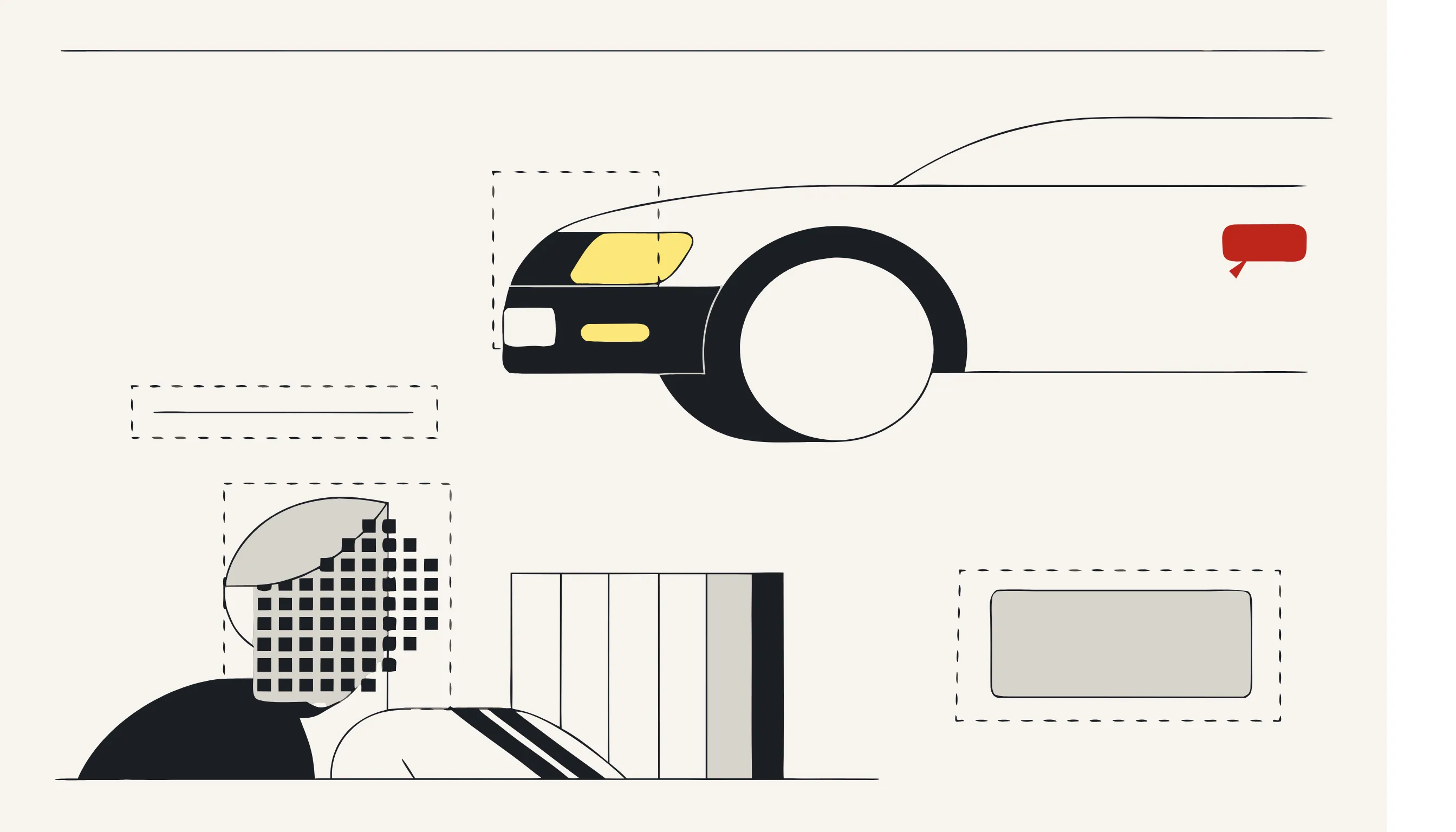
Modern detection models return bounding boxes, rectangular coordinates marking where each sensitive element sits in the frame:
- Faces → face-detection models flag every face, including partial and background faces.
- License plates → object-detection models trained on plates return their coordinates.
- Visible text and PII → OCR extracts on-screen text (names, account numbers, addresses, badges, whiteboards), and entity rules flag which strings are personal data.
- Structured identifiers → numbers that look like card numbers, IBANs or national IDs are confirmed with regular expressions plus checksum validation, so a real card number is redacted but a random string of digits on a poster is not.
Crucially, this stage only produces a map of regions to redact. Nothing is changed yet.
Finding hidden metadata
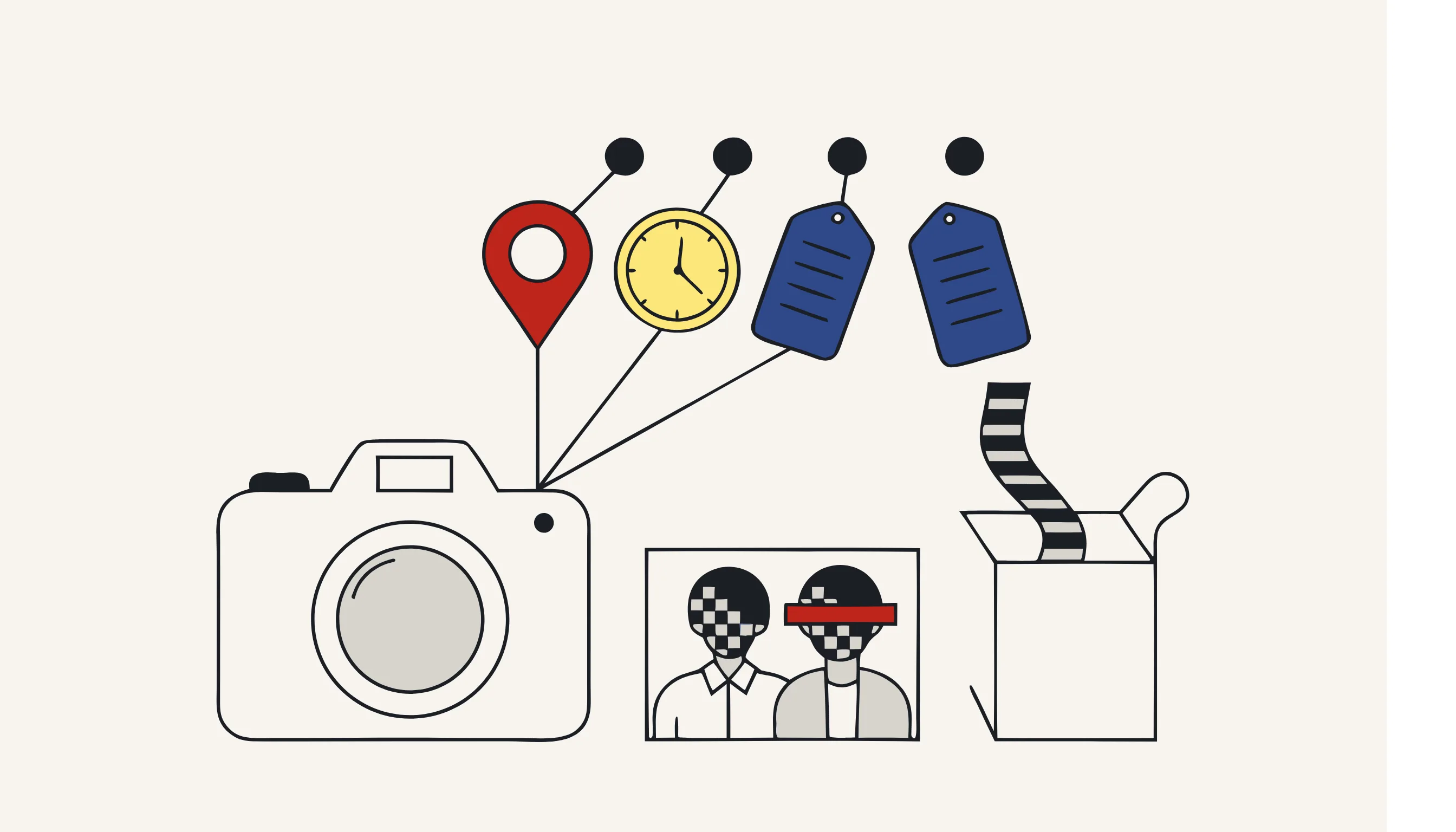
This is the part most workflows skip. Image files carry metadata blocks (EXIF, IPTC, XMP) that the human eye never sees but any text editor or forensic tool can read. Common fields include:
- GPS coordinates: the exact latitude and longitude where the photo was taken.
- Timestamp: the precise date and time of capture.
- Device data: camera or phone make, model and serial number.
- Embedded thumbnail: a small preview that is sometimes a copy of the original, un-redacted image.
That last point is the silent killer: you can box out a face perfectly in the main image and still ship the original face inside the embedded thumbnail.
Step 2: Redact deterministically on the pixels
Now you map each sensitive region back to its coordinates and apply the redaction directly to the image. This is a deterministic operation, a draw call onto a known rectangle:
- Solid box: fill the region with an opaque color. All underlying detail is gone.
- Pixelation (mosaic): downscale the region into large blocks so detail is destroyed but the general shape and layout context remain.
Because the operation overwrites the actual pixels, the original face or plate in those regions is gone. There is no hidden layer to peel back, no adjustment to undo.
Solid box vs. pixelation: which to choose
| Method | Best for | Trade-off |
|---|---|---|
| Solid box | Legal, compliance, evidence (where you must show redaction happened and leave zero residual detail) | Hides layout context; visually blunt |
| Pixelation (strong) | Documentation, marketing, UX screenshots where context matters | Weak settings can be partially reconstructed |
| Light blur | Casual/aesthetic use only | Not recommended for anonymization (can be reversed) |
The key warning: a light Gaussian blur is not anonymization. Mild blur can be undone with de-blurring techniques, and faint detail survives. If you use pixelation, use a coarse block size so no recoverable structure remains. For regulated use cases, a solid box is the safest default; it removes everything and provides an obvious visual audit trail.
Step 3: Strip the metadata (the silent leak)
Redacting the pixels without cleaning the file is like shredding a letter but mailing the envelope with the return address intact. After the visual redaction, the file must be rewritten without its identifying metadata:
- Remove all EXIF GPS fields.
- Remove capture timestamps and device identifiers.
- Strip IPTC/XMP blocks that may carry author, location or caption data.
- Discard the embedded thumbnail and any preview so no original frame survives.
This step is deterministic and total: the output file is a fresh encoding that simply does not contain the offending fields. Done right, dragging the result into any metadata viewer shows nothing sensitive.
Why AI should locate but not remove
It is tempting to hand the whole image to a generative model and ask it to "return the anonymized photo." Don't. Generative editing is non-deterministic. Run it twice and you may get two different results, with no guarantee that every face or plate was covered, and sometimes with invented pixels you cannot defend in an audit.
The reliable pattern separates concerns:
- AI locates (face detection, OCR, object detection, metadata parsing): tasks models are genuinely good at.
- Deterministic code removes (coordinates → box/pixelation, fields → stripped): tasks that must be exact, testable and repeatable.
This is exactly how Medianonymizer approaches every media type: the model only points at sensitive data; plain code does the destruction. The result is precise, auditable and the same every time.
Is an anonymized image truly irreversible?
Yes, if you redact on the pixels and rewrite the file. Filling a region with a solid box or coarse mosaic destroys the original detail in those coordinates. There is no key, no hidden layer and no metadata copy to reconstruct from, because the metadata is gone too.
This is the difference between anonymization and pseudonymization. Pseudonymization swaps identifiers for reversible tokens; with the key, the data can be restored. Anonymization removes the data for good, which is what takes an image out of scope of regulations like the GDPR. If you need the distinction in detail, see anonymization vs. pseudonymization.
Common use cases
- Real estate & insurance: blur faces and plates in property and claim photos before sharing, and strip GPS so you don't reveal the asset's exact location.
- Public-sector & press: box out bystanders and minors in documentation imagery. (For moving footage, see anonymizing CCTV and surveillance footage.)
- Marketing & UX: redact customer names and data in product screenshots and case-study images.
- Scanned forms & IDs: treat document scans as images: redact the visible PII and clean the file. (See document PII redaction.)
- HR & internal docs: anonymize team photos and badges before external publication.
A practical checklist
Before you consider an image anonymized, confirm:
- Every face, license plate and visible identifier has a corresponding redaction.
- Redactions are drawn onto the pixels (solid box or strong pixelation), not as a removable overlay.
- The method is strong enough to be irreversible: no light blur on sensitive regions.
- EXIF/GPS metadata, timestamps and device data are stripped.
- The embedded thumbnail/preview is discarded so no original frame survives.
- The result was reviewed: automated detection plus a human spot-check.
- The original file is deleted or securely retained per your policy.
Anonymize your images now
You don't need to build this pipeline yourself. Our tool to blur faces in photos handles faces and metadata in seconds. Upload an image, tell the assistant what to remove, and download an anonymized copy where every face and visible identifier is boxed or pixelated, and the metadata is stripped, irreversibly.
Frequently asked questions
Not always. A light Gaussian blur can sometimes be reversed or de-blurred, and faint detail may survive. For true anonymization use a strong, irreversible method, a solid box or heavy pixelation that destroys the underlying pixels, and never forget to strip the metadata too.